
So, you are back from a vacation or a gathering and now you are going to upload the bits and pieces of the entire day or the night on social media, but there is one problem. Photobombers. It’s quite annoying if someone else or too many people take up your limelight in the photo where you are supposed to be the main character.
While there is nothing inherently wrong with having a few individuals in the background, you can still remove a person from a photo with the help of AI tools.
Nearly all the tools I have discussed below are either completely free or at least have free tiers.
Why people want to remove someone from a photo
At the beginning of this article, I talked about mostly photobombers, but that is actually not the only reason someone may want to remove a person from a photo. Doing so may consist of many different reasons. Let’s discuss some of them below:
Professional use
Removing someone from a photo can be necessary when it comes to professional use. Specifically for real estate photos that need a cleaner look.
Legal or consent concerns
Many adults are now preferring not to share their children’s pictures on social media. But sometimes children can appear in pictures that were not intended to be taken with them.
Removing someone from the past
An ex partner who is present in a family dinner picture, an ex wife or ex husband in the main family photo, or a picture at a famous destination with an ex- in all these situations, it is best to remove that person from the photo because these pictures may not be able to be recreated again.
Removing photobombers
If everything about a picture is perfect except that someone walked into the frame at the wrong time, then it is also best to remove them from the photo,
How to remove someone from a photo on iPhone and Android for free?
If you are going to edit on iPhone or Android using your phone, then you may actually not even need to access a new tool, as there are features on iPhone and Android that are already built in.
Option 1: Clean Up in Photos
Newer versions of iPhones have a Clean Up tool in the Photos app. It is not available in older models; you may need to check whether you have it on your phone or not.
It is very easy to remove a person someone from a photo using Clean Up. Simply open the photo in Photos and tap Edit. Tap Clean Up. Brush over or circle the person you want to remove. Tap Done to save.
Option 2: Google Photos Magic Eraser
If you are an Android user, you can remove someone from a photo using Google Photos Magic Eraser with a single tap. First, open the photo in Google Photos and tap Edit. Go to Tools and tap Magic Eraser. Tap the suggested person, or circle them yourself. Then, save the edited copy.
Option 3: Samsung Object Eraser
This one is for Samsung users. Open Gallery, tap the pencil icon to edit, and look for the eraser icon in the edit tools.
10 Best Free Tools to Remove a Person from a Photo At a Glance
| Tool | Best For | Free Option |
| Cleanup.pictures | Removing people, objects, and blemishes | Yes, free exports are limited to 720p |
| Upsampler Free AI Image Editor | Removing people with AI-assisted editing | Yes, free daily usage with no sign-up required |
| Snapseed | Manually removing people with the Healing tool | Yes, completely free |
| TheSocialCat Magic Eraser | Erasing unwanted people and objects | Free availability needs confirmation |
| Picsart AI | Removing people and unwanted objects with AI | Partly free, some tools require a subscription or credits |
| Pixa | Removing objects and retouching photos | Free options are available, with plan-dependent limits |
| Pokecut | Erasing people and other distractions | Limited free credits, with some features requiring payment |
| Photoroom | Removing people and filling in backgrounds | Free options are available, with usage and export limits |
| Nano Banana Pro | AI-powered photo editing and object removal | Limited free access may be available, depending on usage limits |
| GPT Image 2 | Editing photos through text instructions | Free image features are available in ChatGPT, but access to the specific model may vary |
Free tools that can remove a person from a photo
Let’s start with the tools that are completely free with no hidden plans.
Cleanup.pictures
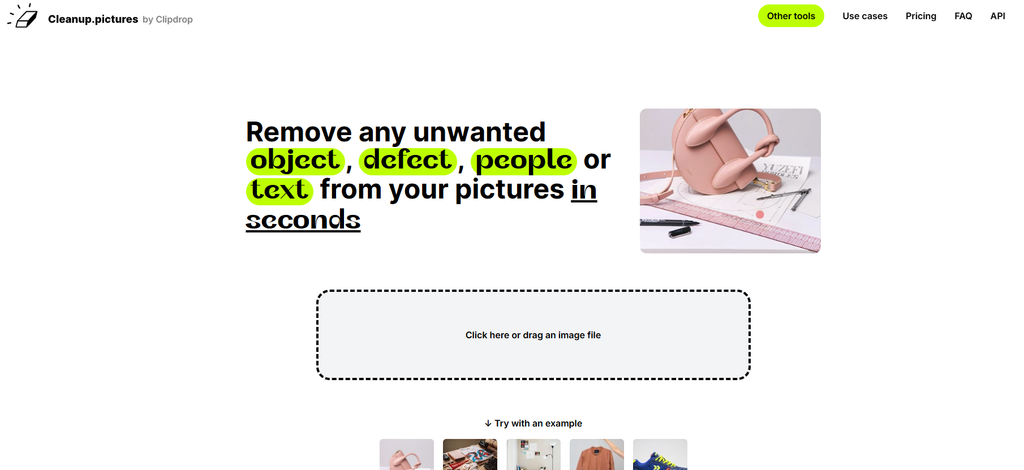
Cleanup.pictures is an online tool for helping you remove a person from a photo, objects, and distractions from photos. You brush over the person you want to erase, and the tool fills the selected area to match the surrounding background. It works well for travel photos, portraits, and everyday pictures where someone has accidentally entered the frame.
Features
- Removes unwanted people and objects
- Uses AI to fill erased areas
- Works directly in a web browser
- Requires no advanced editing skills
- Offers a free version with export limitations
Strengths
- Simple and beginner-friendly
- Quick edits without complex software
- Useful for removing background distractions
Weaknesses
- Results may look unnatural on detailed backgrounds
- Large removals can require multiple attempts
Upsampler Free AI Image Editor
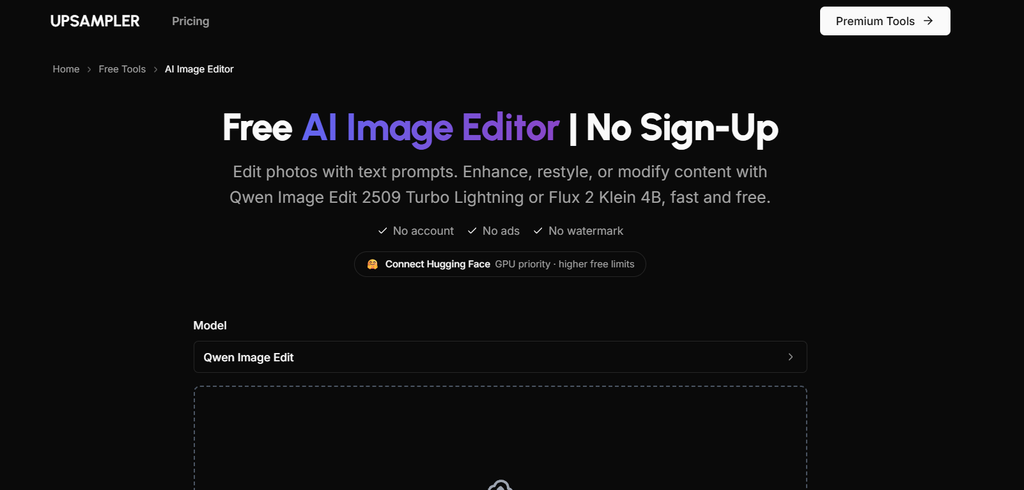
Upsampler Free AI Image Editor helps users edit photos with AI instead of relying entirely on manual retouching. It can be useful when you want to remove an unwanted person and reconstruct the space behind them. The tool is suitable for quick online edits without installing a full photo editor.
Features
- AI-assisted photo editing
- Helps remove unwanted elements from images
- Supports browser-based editing
- Offers free usage options
- Designed for users with little editing experience
Strengths
- Convenient for quick photo cleanup
- Reduces the need for manual retouching
- Useful for basic image editing tasks
Weaknesses
- Free usage may have daily limits
- Exact removal features may depend on the available editing model
Snapseed

Snapseed is a free photo editor with a Healing tool that lets you remove small unwanted elements from pictures. You can brush over a person or object, and the app attempts to blend the selected area with nearby pixels. It works best when the person is small, and the surrounding background is relatively simple.
Features
- Healing tool for removing unwanted elements
- Tools for adjusting brightness, contrast, and color
- Selective editing and detailed image adjustments
- Filters and portrait enhancement options
- Mobile editing for iOS and Android
Strengths
- Free to use
- No subscription is required for its core editing tools
- Offers useful manual controls
- Works well for small distractions
Weaknesses
- Large people are harder to remove cleanly
- Complex backgrounds may show visible marks
TheSocialCat Magic Eraser

TheSocialCat Magic Eraser is intended for removing unwanted elements from photos with a simple erasing workflow. Tools in this category typically let you mark the area you want to remove and use automated background filling to make the edit look natural. Check the current tool page before publishing, as its exact features and free access could not be independently confirmed.
Features
- Intended for removing unwanted photo elements
- Simple erase-based editing workflow
- Designed for quick image cleanup
- May help with background distraction
- Requires little traditional editing experience
Strengths
- Potentially straightforward for beginners
- Suitable for simple cleanup tasks
- Avoids the need for a complex desktop editor
Weaknesses
- Current free limits need verification
- Specific person-removal capabilities need confirmation
Free tier tools
These tools have free tier plans that can help you remove a person from a photo.
Picsart AI
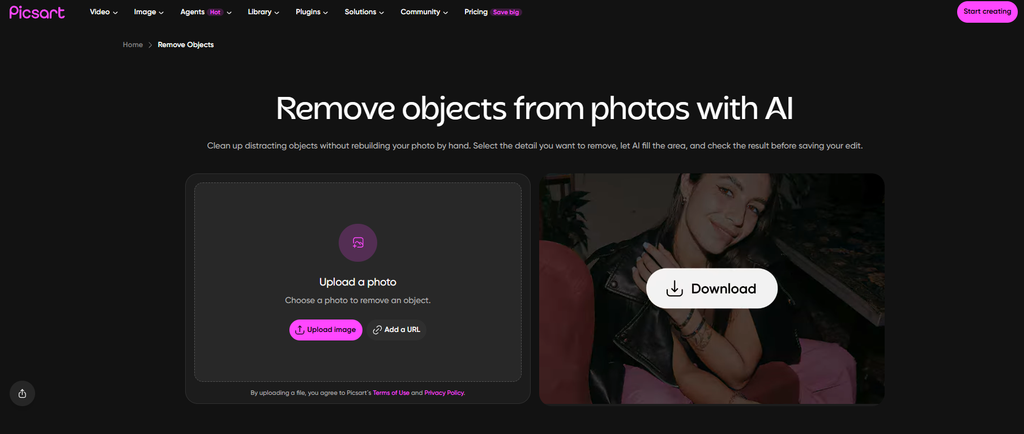
Picsart AI provides photo-editing tools that can help remove unwanted people and objects from images. Depending on the feature available, you can select or brush over a distracting element and let AI reconstruct the surrounding area. It is also useful when you want to make additional changes to the photo after removing someone.
Features
- AI-powered object removal
- Background editing and replacement
- Filters, effects, and image enhancement
- Additional creative photo-editing tools
- Web and mobile editing options
Strengths
- Combines removal with other editing features
- Useful for social media images
- Offers several creative editing options
Weaknesses
- Some features require a paid plan or credits
- The interface has many tools to navigate
- AI edits may struggle with intricate backgrounds
Pixa

Pixa offers AI-powered image editing tools for cleaning up and improving photos. It can be considered for removing unwanted elements, retouching images, and preparing cleaner visuals for personal or commercial use. Check the specific removal tool and its free limits before choosing it for a large number of photos.
Features
- AI-assisted image editing
- Tools for cleaning up unwanted elements
- Photo retouching capabilities
- Browser-based editing options
- Additional image preparation tools
Strengths
- Useful for quick image improvements
- Can support several photo-editing tasks
- Suitable for users who prefer online tools
Weaknesses
- Free access may vary by feature
- Some edits may require credits or payment
- Complex removals may need further correction
Pokecut
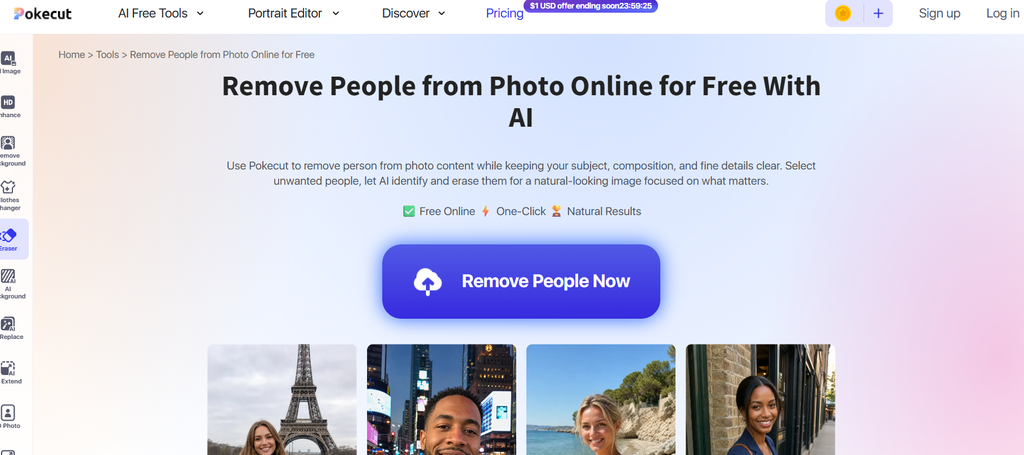
Pokecut offers AI-based photo editing features, including tools for removing unwanted elements from images. You can use it to clean up backgrounds, remove distractions, and improve the overall appearance of a picture. It is worth considering for quick edits when you do not want to work with layers or manually reconstruct the background.
Features
- AI object removal
- Background removal and editing tools
- Photo enhancement features
- Browser-based editing
- Additional tools for preparing images
Strengths
- Easy to use for basic edits
- Offers more than one type of image-editing feature
- Useful for cleaning up everyday photos
Weaknesses
- Free credits or usage may be limited
- Advanced features may require payment
- Results can vary on busy backgrounds
Photoroom
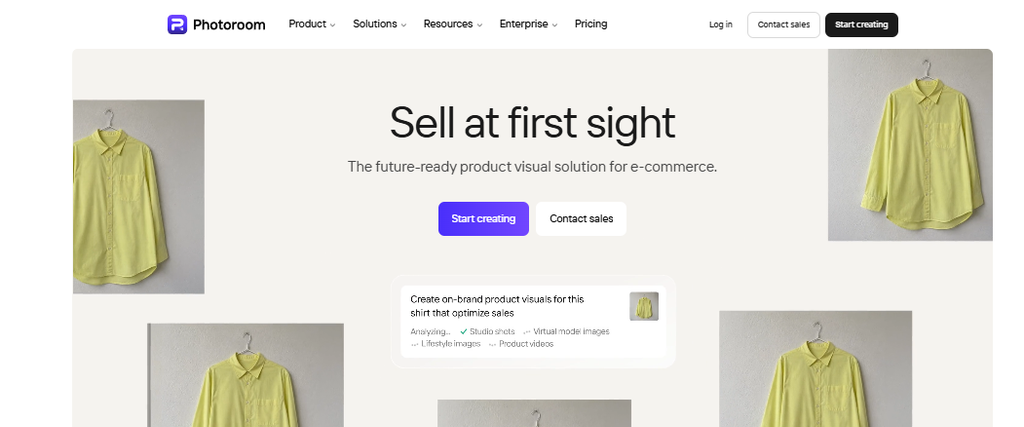
Photoroom is best known for background editing and product photography, but its AI editing tools can also help remove unwanted elements from photos. You can use the relevant object-removal feature to clean up a picture and make the remaining background look more consistent. Its usefulness depends on the available editing options in your version.
Features
- AI object removal and photo cleanup
- Background removal and replacement
- Image editing for product photos
- Background and lighting adjustments
- Web and mobile apps
Strengths
- Helpful for product and promotional images
- Combines cleanup with background editing
- Offers a relatively simple workflow
Weaknesses
- Some features have usage restrictions
- Free exports or AI tools may be limited
- Detailed backgrounds can be difficult to reconstruct
Prompt-based tools
Prompt-based tools include tools like ChatGPT and Google Gemini. These are not primarily used for this purpose, but you can ask them for object removal using prompts.
Google Gemini
Google Gemini can edit uploaded images using natural-language instructions. Instead of manually selecting every detail, you can ask it to remove a person from a photo while keeping the rest of the scene as close to the original as possible. It is useful when the removal needs more context-aware editing, although the result may change other parts of the image.
Features
- Image editing through text prompts
- Can remove unwanted people and objects
- Supports conversational editing instructions
- Can make additional changes to a photo
- Accessible through the Gemini interface
Strengths
- Simple prompt-based workflow
- Useful for more complex editing requests
- Allows follow-up instructions to refine results
Weaknesses
- Free usage limits may apply
- May change details beyond the selected person
- Results can vary depending on the image and prompt
ChatGPT’s image generation and editing tool
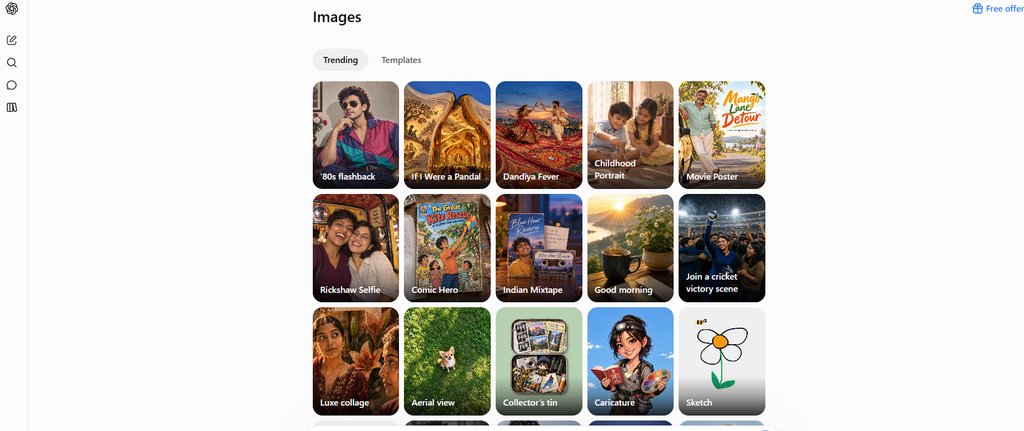
ChatGPT’s image generation and editing tool can help remove a person from a photo using written instructions. Upload the image and describe what you want changed, such as removing a person standing in the background while preserving the main subject and surrounding scenery. You can then request further adjustments if the first result does not look right.
Features
- Edits images using natural-language prompts
- Can remove unwanted people and objects
- Supports follow-up editing requests
- Can adjust or reconstruct parts of an image
- Combines image editing with conversational guidance
Strengths
- Easy to use without advanced editing skills
- Lets you explain which details should remain unchanged
- Useful for iterative edits and refinements
Weaknesses
- Free image-generation access has usage limits
- May alter parts of the original photo
- Precise results are not guaranteed, especially with complex scenes
Conclusion
It is quite easy to remove a person from a photo using these tools. First, try out the free tools, and if you are not satisfied with the results or need very high-quality results, you can consider using a premium tool if you want. For casual use cases, these tools are enough.
FAQs
How do I remove a Person from a Photo for free?
Use Cleanup.pictures, Snapseed, or Google Gemini.
What is the best free tool to Remove a Person from a Photo?
Cleanup.pictures is a good option for quick edits.
Can AI remove people naturally?
Yes, but complex backgrounds may show imperfections.
Can I remove people online without an app?
Yes, several browser-based tools offer this feature.
Do free tools reduce photo quality?
Some limit export resolution on free plans.

Sapna Ghodasara is the founder of Guide of AI Tool, where she writes in depth reviews of AI tools for marketers, creators and businesses. Her reviews focus on what matters before you pay for a tool: real use cases, honest pros and cons, pricing, and how well it fits into an everyday workflow.
Sapna is the cofounder of SEOMagicLab. That mix of technical training and daily marketing work lets her judge AI tools from two angles: how well the technology actually performs and whether it delivers real value for the people using it.