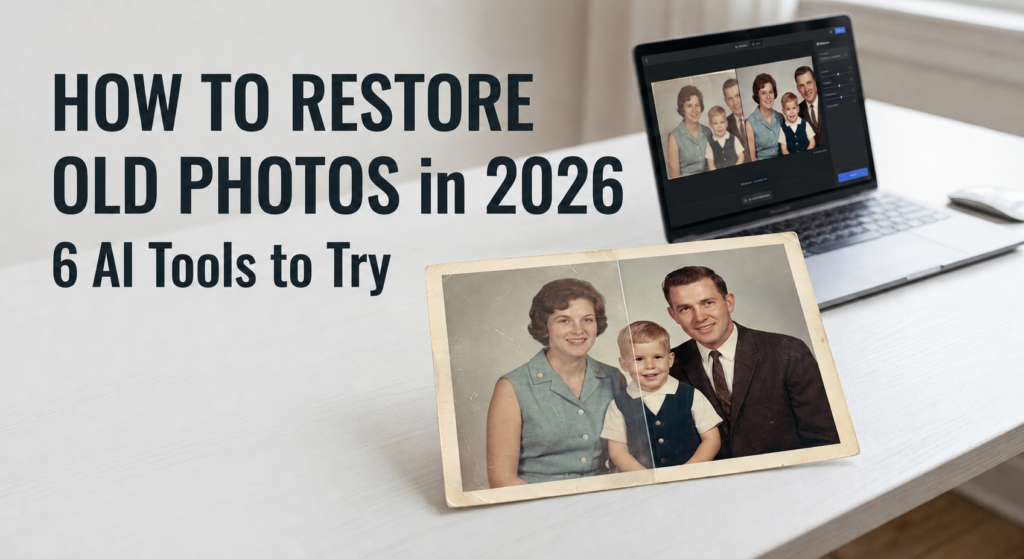
A photograph stores so many memories, and old photos rarely disappear all at once. First, the colors start to fade. Then scratches appear, details become harder to see, and faces can lose their sharpness. A photograph that once looked clear can eventually become a faded version of the memory it captured.
If you have decided to restore old photos, then you don’t have to fix every scratch or blurry area manually; AI can analyze the photograph and make several corrections automatically.
But not every restoration tool works the same way. Some are better at sharpening low resolution images, while others focus on faces, colorization, or detailed manual repairs.
In this guide, we’ll look at six AI tools that can help restore old photos in 2026 and explain which type of damaged photograph each one is best suited for.
What Can AI Actually Fix in an Old Photo?
Before choosing a tool, it helps to understand what AI restoration can and cannot do.
Depending on the software, AI can help with:
Blur
Make soft details and faces appear sharper.
Noise
Reduce grain and digital noise.
Fading
Improve washed-out contrast and tones.
Scratches and marks
Remove smaller visible imperfections.
Low resolution
Increase the size of an image while improving perceived detail.
Black-and-white photos
Add AI-generated color.
Facial detail
Enhance faces that have become difficult to recognize.
AI Tools That Can Restore Old Photos At a Glance
| Tool | Best For | Key Strength | Ease of Use |
| Topaz Labs | Blurry & low-resolution photos | Sharpening and upscaling | Easy |
| Adobe | Detailed restoration | Advanced AI + manual editing | Moderate |
| VanceAI | Quick enhancement | Sharpening and image enhancement | Easy |
| MyHeritage | Family photos | Face enhancement and colorization | Easy |
| Remini | Blurry faces | Facial detail enhancement | Very Easy |
| Picsart | Restoration + editing | AI restoration and creative tools | Easy |
6 Best AI Tools That Can Restore Old Photos
Topaz Labs: Best When the Photo Is Blurry or Low-Resolution
Sometimes an old photo isn’t badly damaged. It’s simply soft, noisy, or too small.
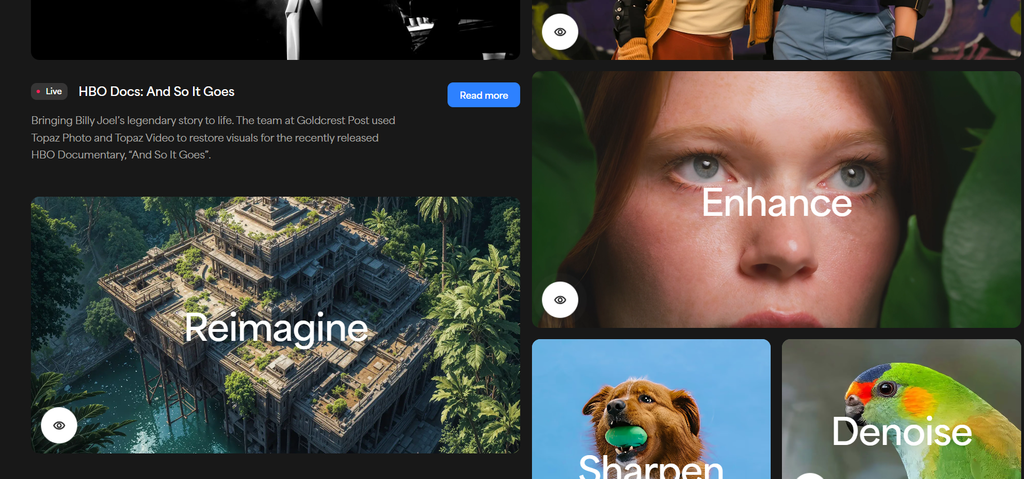
Topaz Labs gives enough clarity to old photos where people still are recognizable, and the composition is intact.
Its AI photo enhancement tools are designed around improving image quality, including sharpening, noise reduction, and upscaling.
When to use Topaz Labs
Choose it when:
- The original photo is blurry.
- You have a low-resolution scan.
- Faces and objects are present but lack detail.
- You want a larger version for printing.
- Noise is distracting from the photograph.
You don’t necessarily have to rebuild the photograph. You can start with what is already there and improve its presentation.
Watch out for
- Don’t assume that more sharpening means a better restoration.
- Excessive enhancement can make faces, hair, and clothing textures look unnatural.
Adobe Photoshop: Best for Photos That Need More Than One Fix
Some photographs need more than an automatic enhancement.
You might have a portrait with a scratch running across someone’s face, faded contrast, damaged edges, and an unwanted color cast. In situations like this, having individual tools for different problems becomes valuable.
Adobe lets you combine AI-assisted features with traditional editing tools. You can use healing and cloning tools for specific damaged areas, adjustment layers for tonal corrections, and AI-powered features for tasks such as colorization.
When to use Adobe Photoshop
- The photograph has several different types of damage.
- You need to repair a specific area manually.
- You want control over the final result.
- The image has important sentimental or historical value.
- Automatic restoration produces an imperfect result.
Watch out for
Adobe takes more time to learn than a one-click restoration tool.
But that extra control can be useful when you don’t want an AI model making every decision for you.
Vance AI: Best for a Quick Enhancement
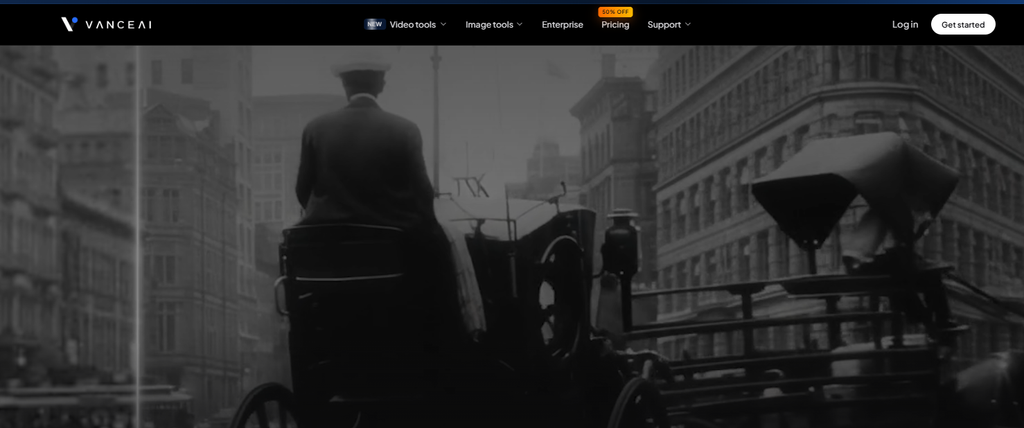
If you have to restore old photos that do not require a complicated restoration process. Maybe it has just become slightly blurry and faded, but there are no major tears or missing sections.
In this case, VanceAI is the AI tool you should consider. It helps improve sharpness, reduce noise, and increase image resolution without requiring you to work through a large set of manual editing tools.
When to use VanceAI
It can be useful when:
- The photograph has mild damage.
- The main problem is image quality.
- You want a simple enhancement workflow.
- Improve resolution before printing or sharing.
Watch out for
Heavy enhancement can make details look too sharp or artificial. Check the final image at full size before saving it.
MyHeritage: Best for Family Albums and Old Portraits
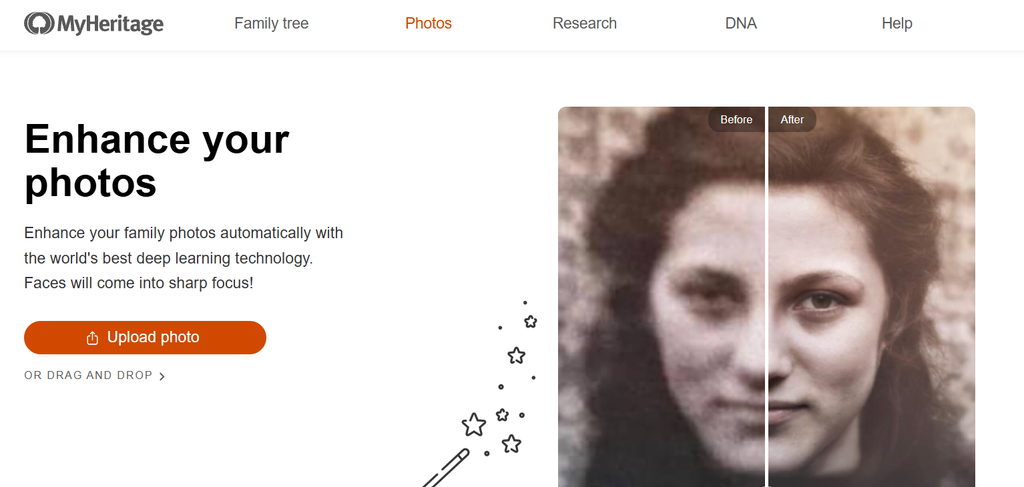
If your restoration project involves photographs of grandparents, great-grandparents, or older family members, MyHeritage is worth considering.
The photo tools are particularly relevant to genealogy and family-history images. Face enhancement can help make old portraits easier to see, while colorization can give black-and-white photographs a different way to experience the image.
When to use MyHeritage
It is a good fit when:
- Have to restore family photographs.
- Faces are the most important part of the image.
- Colorize black-and-white pictures.
- You’re digitizing an old family album.
- You want an easy workflow rather than detailed manual editing.
Watch out for
Its face enhancement can sometimes create realistic-looking details that were not visible in the original, so compare the result with the source photo.
Remini: Best for Faces
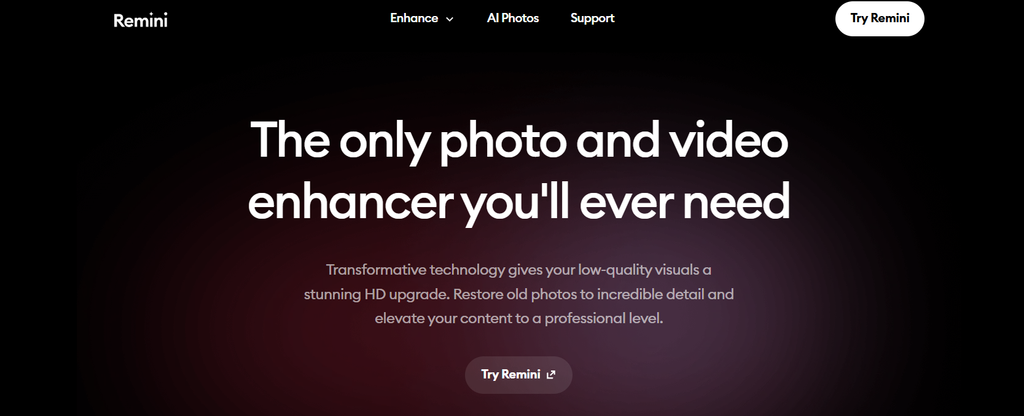
Imagine finding a photograph of a family member from decades ago. The photograph is still intact, but their face is blurry enough that you have trouble making out the details.
This is the kind of situation where Remini can be useful.
The platform is known for AI-based image and face enhancement. Rather than treating the photograph only as a collection of pixels, its enhancement approach can focus heavily on making faces more recognizable.
When to use Remini
Try it when:
- A person’s face is particularly blurry.
- You’re working with an old portrait.
- The photograph has low facial detail.
- You want a quick face enhancement.
Watch out for
Face restoration deserves extra scrutiny. When an AI doesn’t have enough information, it may create details that look realistic but weren’t actually visible in the original photograph.
So if you’re restoring a historically important image, always compare the enhanced face with the original.
Picsart: Best for Restoration Plus Editing
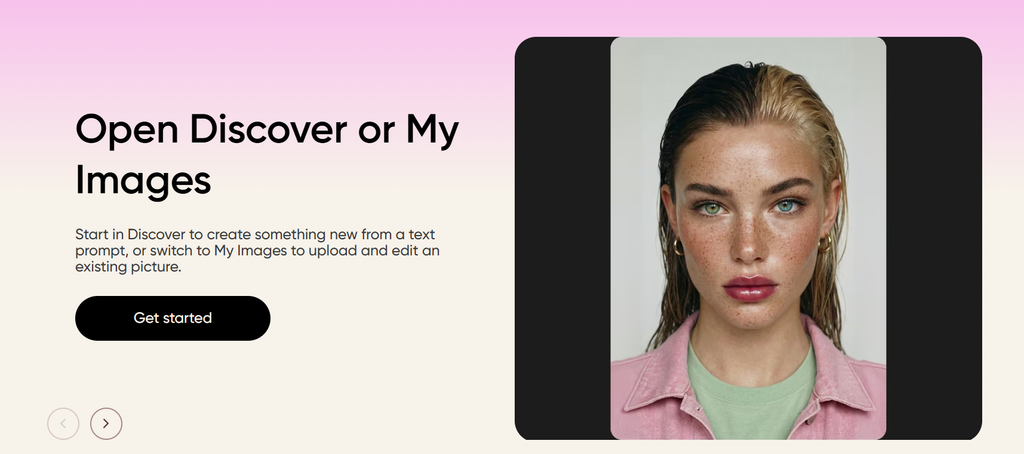
Sometimes restoration isn’t the final step. You might want to repair an old photograph, remove an unwanted mark, improve its resolution, add color, and then prepare it for social media or printing.
Picsart can make sense in this situation because restoration sits alongside its broader image-editing tools.
Its AI restoration capabilities can help with common problems such as scratches, spots, faded tones, and other imperfections. It also provides enhancement, colorization, and upscaling features.
When to use Picsart
- You want restoration and editing in one place.
- The photograph needs several light corrections.
- You want to continue designing after restoration.
- You’re preparing restored images for digital sharing.
Watch out for
Using several AI effects together can over-process the image and remove its natural texture. Apply edits gradually for a more authentic result.
How to Restore a Severely Damaged Photo
Some pictures are in such a situation where restoring them may not seem like an option. They may have large tears, stains, missing areas, or faces that are almost impossible to recognize. In this situation, AI can help but not be able to fix everything. A practical approach is to combine AI with some manual editing:
Start with a good scan
Scan the original at a high resolution and keep the untouched file as a backup.
Let AI handle the basic cleanup
Use an AI restoration tool to reduce scratches, improve clarity, and bring back some faded detail.
Check what changed
Look closely at faces, clothing, and other important areas. AI may sometimes add details that weren’t clearly present in the original.
Fix difficult areas manually
For large tears or missing sections, tools such as Photoshop’s Healing Brush or Clone Stamp can give you more control.
Add color carefully
If the original is black and white, colorization can make it easier to view, but the colors may not match the original scene exactly.
Keep the original for comparison
Check the restored version against the scan to make sure important details haven’t been changed unnecessarily.
FAQs
Can I use AI to restore old photos?
Yes. AI photo restoration tools can automatically improve old, faded, blurry, or damaged photos. Depending on the tool, they can sharpen details, reduce noise, repair scratches, restore faded colors, enhance faces, and colorize black-and-white images.
What is the best app for restoring old photos?
There isn’t one best app for every photo. Remini is a good choice for improving blurry faces; MyHeritage works well for family and genealogy photos, while Adobe Photoshop is better when you need detailed control over the restoration. Your choice should depend on the type and severity of damage in the photo.

Sapna Ghodasara is the founder of Guide of AI Tool, where she writes in depth reviews of AI tools for marketers, creators and businesses. Her reviews focus on what matters before you pay for a tool: real use cases, honest pros and cons, pricing, and how well it fits into an everyday workflow.
Sapna is the cofounder of SEOMagicLab, an SEO and link building agency serving B2B SaaS, ecommerce and content brands. That mix of technical training and daily marketing work lets her judge AI tools from two angles: how well the technology actually performs and whether it delivers real value for the people using it.