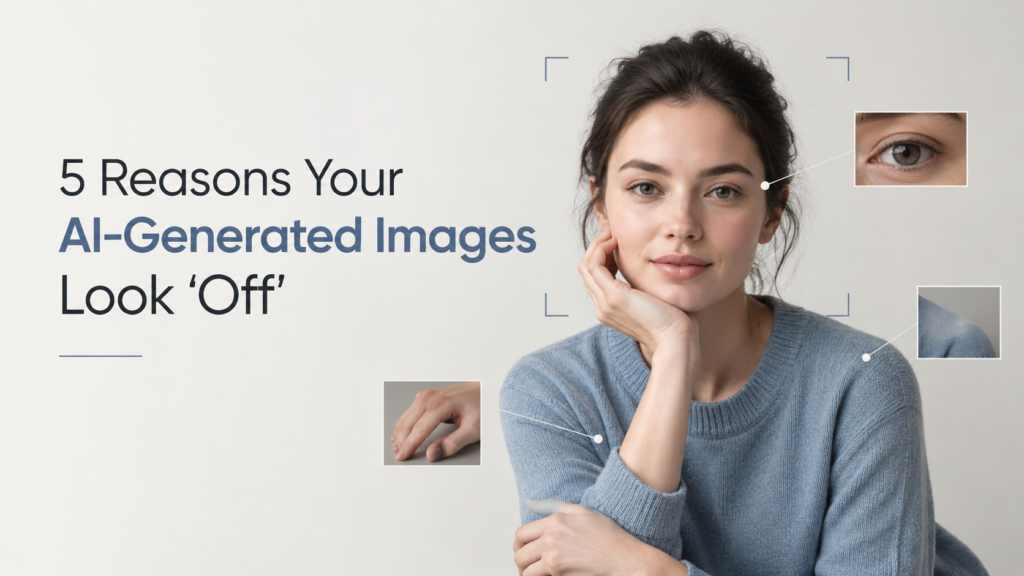
AI-generated images do not and are not supposed to look real. After all, they are made with AI technology. There are certain ways to know if an image is AI-generated or not. However, if an image looks too ‘AI’ or, in other words, a bit ‘off’, many people may not like it.
One other thing that matters is the use case in which you are using AI-generated images. The main reason is that it saves time and leaves room for customization.
But no matter what you need it for, this article focuses on the reasons your AI-Generated Images look off and, more importantly, how to fix them.
Everything looks too new
An image does not have to be perfect, as real things aren’t. Most artists, when creating art, add a visual history too. That means that the objects in that image should show some signs of aging.
If everything looks untouched, with no wear, dirt, wrinkles, fingerprints, or signs of use. Sometimes AI-generated images miss these things and make the image too perfect to look at. As if there is no visual history of that image
So, for example, you asked an AI image tool to create an image of a kitchen. The image that it creates may have perfectly clean surfaces, furniture may have no small scratches, and the kitchen towels may look completely untouched. But the truth is, even the cleanest kitchen has some of the things I mentioned above.
Every object feels equally important
Every object ultimately deserves your attention, but every image should have a focus or center of attention. When you first look at it, you’ll see that object first, then your eyes will move on to the other things. In many AI-generated images, this specific problem tends to occur a lot.
In a real photograph, each subject in the image will look different because of differences in focus, lighting, contrast, color, and depth.
The subject looks emotionally posed
This is a very unnoticed problem that happens with AI-generated images. And that is
The person in the AI-generated image can have correct anatomy and still look strange because their body language does not match the situation.
The expressions and the overall behaviour may look uncanny and sometimes even a little creepy. You may feel this is something that is trying to look human but is not.
Someone who is walking can look still, as if they are sitting on the sofa or posing for a photoshoot. The expressions should look more focused, and the jaw might tighten.
A group of people standing together may stand too neatly instead of naturally responding to one another. These subtle behavioral problems can make an otherwise realistic image feel staged.
Objects don’t properly interact with their environment
One reason an AI-generated image can feel “off” is that the individual objects look realistic, but their interactions with each other don’t. AI is good at generating the appearance of a chair, table, person, window, or piece of clothing. The harder part is making all of them obey the same physical rules.
For example, a person may be sitting on a sofa, but their body might not appear to put the expected pressure on the cushions. A glass may be placed on a table without a convincing contact shadow. Curtains can appear to be blowing while nearby objects remain completely still. Hair and clothing may suggest movement, while the environment gives no indication that wind or motion exists.
The same problem can happen with light and reflections. A shiny surface may reflect something that doesn’t quite match the surrounding scene. Shadows can point in slightly different directions, or an object can appear brighter than the surface around it. These inconsistencies are often subtle enough that viewers cannot immediately identify the problem. They simply make the image feel less believable.
The Composition Is Almost Too Perfect
Sometimes an AI image looks strange because it looks too carefully arranged. Everything may be centered, balanced, evenly spaced, and perfectly visible. While this can create an attractive image, it doesn’t always look like a photograph captured in the real world.
Real photographs contain small compositional imperfections. A person might be slightly off-center. An object may be partially hidden behind another object. AI might try to create a visually appealing image that is too perfect.
This is especially noticeable when generating supposedly candid images. If everyone is perfectly positioned, faces are clearly visible, objects aren’t blocking anything important, and the background is neatly balanced, the image can lose the randomness that makes real photography feel authentic.
How to fix these problems and create better AI-generated images
Now that we have discussed the reasons for AI-generated images looking off, it is important to know how to fix these issues so that you can generate more realistic AI-generated images in the future. Let’s go back to square one and see how each one of the problems can be fixed in a detailed way.
I am assuming you are creating AI-generated images in an AI image tool, so when I say add, all I am trying to convey is that add it in the prompt or use the AI tool to add or remove some details.
Add Realistic Imperfections
- Add details like “slightly worn,” “natural imperfections,” “subtle scratches,” “realistic wrinkles,” or “signs of everyday use” to the prompt.
- If the object already looks too new, use the AI editor to add small imperfections.
- Add things that naturally appear in real spaces, such as fingerprints, small marks, uneven surfaces, wrinkles, or minor stains.
- Avoid describing every surface as “perfect,” “pristine,” or “flawless.”
- Use a real photo as a reference when you want the AI to copy the natural texture and condition of an object.
Reduce Background Details
- Add “shallow depth of field” or “soft background blur” when you want the subject to stand out.
- Ask the generator to keep the background less detailed than the main subject.
- Use words like “focused subject,” “soft background,” or “natural photographic depth.”
- If everything is already sharp, use an AI editor to blur or simplify parts of the background.
- Reduce unnecessary objects from the scene. A crowded background can make everything compete for attention.
- Make the main subject brighter or more detailed while keeping secondary elements simpler.
Give People Something to Do
- Add “candid moment,” “natural body language,” “caught in the moment,” or “not looking at the camera” to the prompt.
- Describe what the person is actually doing instead of only describing how they should look.
- For example, instead of “a woman in a kitchen,” try “a woman preparing vegetables while looking at the cutting board.”
- Add natural movements such as walking, reaching, turning, talking, or looking at another person.
- Use a reference image when the pose or body position needs to look natural.
- If the face looks too posed, regenerate only the face or upper-body area using the editor.
Fix Object Interactions
- Check whether objects are actually touching the surfaces they are supposed to be on.
- Add phrases like “realistic contact shadows,” “natural object placement,” or “physically accurate positioning.”
- Check the direction of the shadows. They should follow the same light source throughout the image.
- Use the inpainting or edit option to fix floating objects instead of regenerating the entire image.
- Fix strange reflections by selecting only the reflection and regenerating that area.
- If clothing, hair, curtains, or leaves show movement, make sure other elements in the scene react to the same movement.
- Use a reference image when perspective, lighting, or object placement is especially important.
Make the Framing Less Perfect
- Add “candid composition,” “natural framing,” or “slightly imperfect framing” to your prompt.
- Move the main subject slightly away from the center.
- Try a different camera angle instead of always using a straight, symmetrical view.
- Let some objects or people be partially cut off by the edge of the frame.
- Add something in the foreground, such as a chair, plant, doorway, or person.
- Avoid asking for everything to be perfectly centered, symmetrical, balanced, and clearly visible.
- If the image is already good, use an AI editor to move, crop, remove, or extend specific elements instead of generating a completely new image.
Conclusion
Your AI-generated images are not going to look completely real, but may look realistic if you follow certain tricks that we have discussed in this article. Most of these things are missed while creating an AI-generated image. We have a habit of saying things like make it ‘perfect,’ and AI may take it too seriously.
Lastly, if you are thinking of creating prompts using ChatGPT or any other AI tool, give some basic guidelines to do so. You don’t have to write the entire prompt, but just give the AI some idea.
FAQs
How to recognize fake AI-generated images?
Small details that look off should serve as red flags. Examine hands and fingers, faces, text, reflections, shadows, and objects that just don’t quite seem to fit. You can zoom in on images for signs of distorted textures or repeating patterns, but this may not be sufficient as AI continues to evolve.
What makes AI images look AI?
AI photos typically look AI when details in the image don’t align. This includes things like unnatural hands, skin that appears too smooth, lighting that appears incorrect or out of place, reflections that don’t reflect properly, objects not interacting with their environment as they should, or overall compositions that appear too polished.
What are the benefits of AI images?
You’re able to generate these pictures without even needing a camera; there isn’t a studio to be set up with cameras, lights, and backdrops, nor the need for a professional graphic designer, and you can generate product images, advertisements, content, social media images, and illustrations a lot quicker.
Are AI photos safe?
AI-generated images are generally safe to use, depending on the particular tool you pick and your intention for use. Never input private photos or any type of personal information into a program that you don’t have reason to trust. Carefully read the terms and conditions and image licensing, as they can vary. If an AI image resembles a human that you know of, ensure that you are not causing any privacy issues or attempting impersonation.
Sapna Ghodasara is the founder of Guide of AI Tool, where she writes in depth reviews of AI tools for marketers, creators and businesses. Her reviews focus on what matters before you pay for a tool: real use cases, honest pros and cons, pricing, and how well it fits into an everyday workflow.
Sapna is the cofounder of SEOMagicLab. That mix of technical training and daily marketing work lets her judge AI tools from two angles: how well the technology actually performs and whether it delivers real value for the people using it.