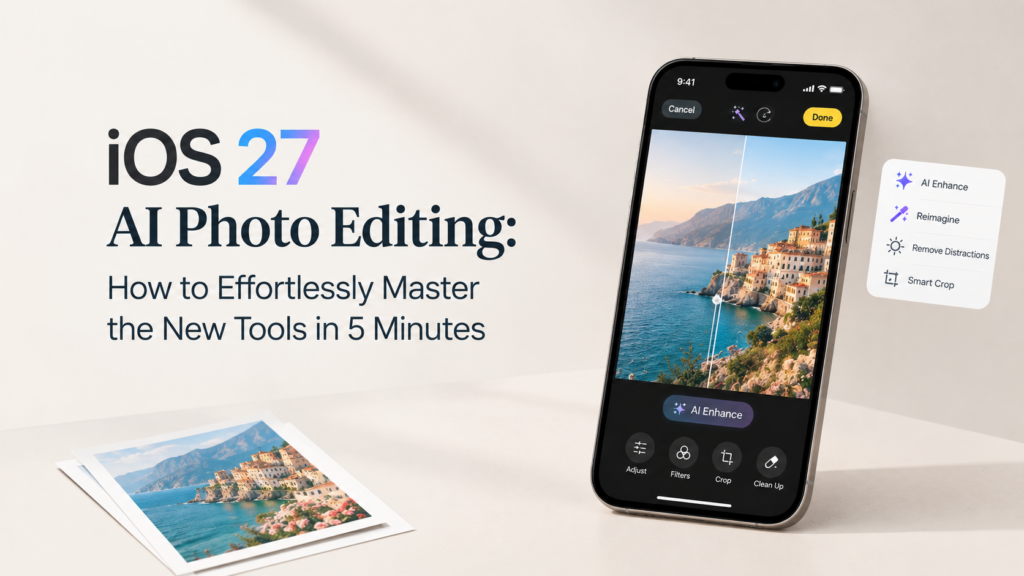
IOS 27 is here, and the latest update also brings new features to the Photos app on iPhones that support Apple Intelligence.
Apple has added Spatial Reframing, Extend, and a new version of the Clean Up tool. These features are useful when a shot is almost perfect except for one minor issue. Extend extends the edges of an image to give you more space, Clean Up removes objects, and Spatial Reframing changes the way a shot is framed after it’s been shot.
You may already have a lot of photos where you could use this. There could be someone in the background; your subject could be too close to the edge, or you could just wish that you’d had a little more of the scene in the shot.
Previously, you needed to download a separate photo editor for editing pictures, but now with iOS 27 AI Photo Editing, you can directly edit your pictures from Photos.
The tools are also quite easy to use. Even if you’re new to photo editing, it won’t take long to understand the basics.
In this guide, I’ll also be showing you where to find the iOS 27 AI Photo Editing tools, what they can do, and how to make quick edits to your photos using them.
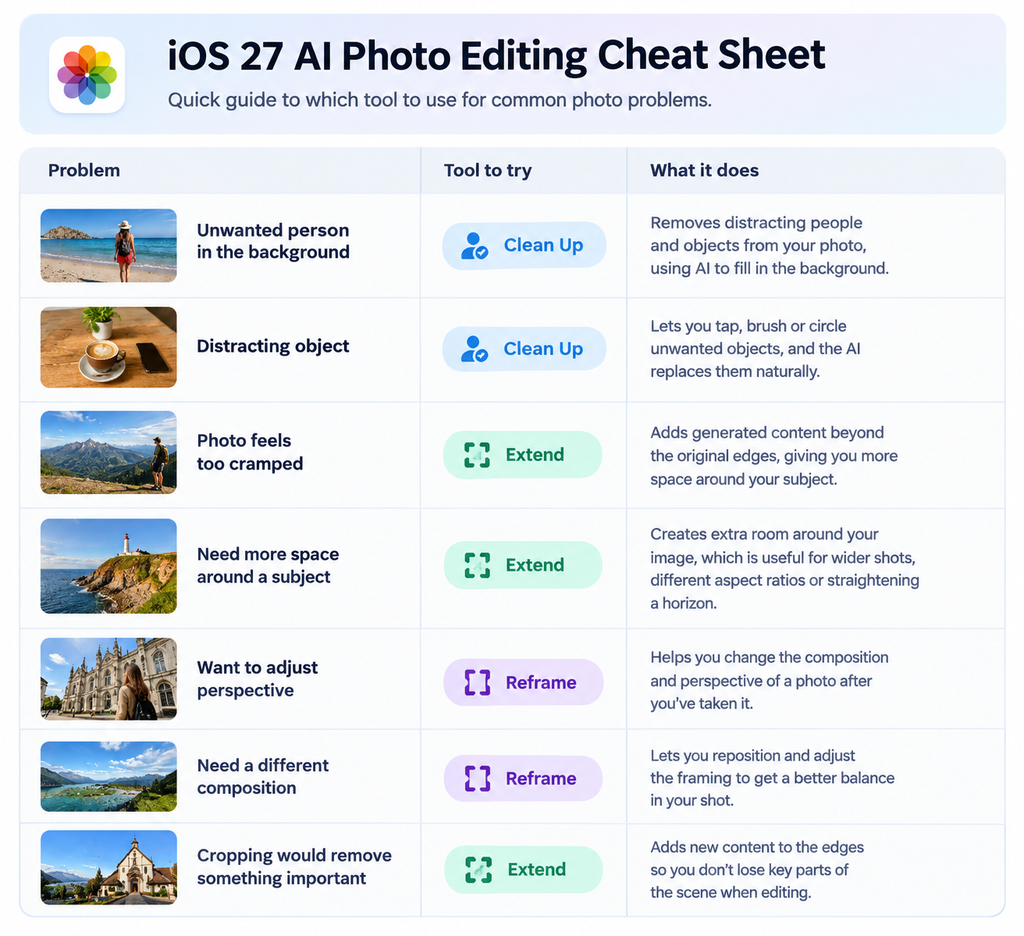
A Quick iOS 27 AI Editing Cheat Sheet
What Is New in iOS 27 AI Photo Editing?
The new iOS 27 AI Photo Editing tools focus on three common photo problems:
- Clean Up: Removes distracting objects from your photos.
- Extend: Adds generated content beyond the original edges of a photo.
- Spatial Reframing: Lets you change the perspective and composition after taking the photo.
These aren’t completely separate photo-editing apps hidden inside iOS. They are built into Photos and appear when you edit a compatible image on a supported iPhone.
Apple also says the upgraded Clean Up tool can handle larger distractions and produce more realistic filling in the area it removes. This new update is more interesting for everyday photography than it may sound at first.
Before You Start with iOS 27 AI Photo Editing: Do You Have a Compatible iPhone?
iOS 27 AI Photo Editing requires Apple Intelligence. Apple currently lists the iPhone 15 Pro, iPhone 15 Pro Max, and iPhone 16 models or later as compatible with Apple Intelligence on iOS 27.
Apple Intelligence availability also depends on language and region, and some features have usage limits. So if you have installed iOS 27 but cannot find some of these options, compatibility or availability may be the reason.
Start With Clean Up
Let’s start with the tool you’re most likely to use. Open Photos, select a picture, tap Edit, and look for Clean Up under the available tools.
Clean Up lets you remove distracting objects from an image. You can tap, brush over, or circle the thing you want to remove. Some objects can also be highlighted automatically.
Imagine you took a nice travel photo, but there is a random person standing behind you.
You can mark the person and let the AI reconstruct the area without cropping the photo and losing part of the scene.
What should you remove?
Start with simple distractions:
- People in the background
- Small objects on tables
- Signs or unwanted items
- Background clutter
- Objects near the edge of the frame
A plain wall behind an unwanted object is an easy situation for AI. A complicated scene with several people, detailed textures, or overlapping objects is much harder. So don’t expect every removal to look perfect. Zoom in and inspect the result before saving it.
Give Your Photo More Space With Extend
Sometimes the photo itself isn’t bad. The problem is that you don’t have enough space around the subject. Maybe you took a portrait too close to the edge. Maybe you need a wider image for a social post. Or perhaps you want to straighten a crooked horizon without cutting something important out of the frame.
Extend can generate additional image content beyond the original frame.
For example, imagine you have a person standing close to the left side of a photo. You want the image to feel wider, but cropping won’t help because it would remove even more of the scene.
When should you use Extend?
- Your subject feels cramped
- You need a different aspect ratio
- You want more breathing room around a person
- You want to straighten a horizon
- Cropping would remove something important
The important thing to remember is that Extend can generate new pixels outside the original photograph. That means you should check the added area carefully, especially when the image contains detailed architecture, patterns, text, or other objects.
Try Spatial Reframing
Spatial Reframing is the most unusual of the three iOS 27 AI Photo Editing tools. Spatial Reframing lets you change the composition of a photo after you’ve taken it. Instead of simply cropping the edges, you can touch and drag the image to adjust its perspective.
If a photo does not have the right composition, the person may be too close to one side, and the background may not have the balance you wanted, or you may want to create a slightly different perspective from the same shot, Spatial Reframing gives you another option before resorting to a traditional crop.
Apple says the tool uses its spatial understanding to generate content where the perspective has shifted while keeping the rest of the scene consistent.
The 5-Minute iOS 27 AI Photo Editing Workflow
Now let’s put everything together. You don’t need to learn every editing option before you start.
Minute 1: Pick the right photo
Choose a photo that has one obvious problem. Don’t start with a complicated image. A photo with a distracting person, awkward composition, or limited space around the subject is ideal.
Minute 2: Remove distractions
Open the photo and use Clean Up.
- Tap, brush, or circle the object you want to remove.
- Give the AI a moment to process the change, then zoom in and inspect the result.
- If the result looks strange, undo it and try selecting the object differently.
Minute 3: Fix the composition
Now try Spatial Reframing.
- Move the image around and see how the perspective changes.
- Don’t push it too far.
- Small adjustments usually make more sense for a normal photograph than trying to completely change the scene.
Minute 4: Add breathing room
If the photo still feels cramped, try Extend. This is also the time to think about where you’ll use the photo. A photo for a phone wallpaper, Instagram post, website banner, or printed image may need a different composition.
Minute 5: Compare Before and After
This step is easy to skip, but you should not. Look at the edited version next to the original. See if AI actually fixed the problem and whether the after result looks natural or not.
What Makes iOS 27 AI Editing Useful?
The biggest advantage isn’t that the iPhone suddenly becomes a professional photo-editing workstation. It’s the convenience. You can fix several common problems without opening another application, learning complicated tools, or starting the edit from scratch. Clean Up is useful for distractions. Extend is useful when you need more room. Spatial Reframing is useful when the original composition is close, but not quite right.
Where You Should Be Careful
iOS 27 AI Photo Editing still has limits. Removing a person from a simple background is one thing. Removing someone standing in front of a detailed building is another.
You may also see unusual results around:
- Hair
- Hands
- Reflections
- Repeating patterns
- Text
- Detailed architecture
- Objects overlapping each other
This is why the five-minute workflow shouldn’t mean editing everything automatically and saving it immediately. Spend a few seconds checking the final image. Those few seconds can make the difference between an edit that looks natural and one that looks obviously AI-generated.
Final Thoughts
iOS 27 AI photo editing tools aren’t about turning every picture into a completely different image. They’re more useful for fixing the small problems that can ruin an otherwise good photo.
Someone in the background. Not enough space around your subject. A composition that feels slightly off. Clean Up, Extend, and Spatial Reframing give you simple ways to deal with those problems directly inside Photos.
And if you only remember one thing, make it this: Clean Up removes distractions. Extend creates more room. Spatial Reframing changes the composition. Once you understand those three jobs, you can open almost any suitable photo and know which tool to try first.
FAQs
Are iOS 27 AI photo editing tools free?
Yes, it’s free. These features are available with iOS 27 on supported devices. But you will require an Apple Intelligence-compatible device to access these features.
Does iOS 27 have AI photo editing?
Yes. Clean Up, Extend, and Reframe are coming to AI-based photo editing on iOS 27 via Apple Intelligence. These features allow you to remove objects, add more space around a photo, and change a photo’s composition.
Which iPhones support iOS 27 AI photo editing?
Devices with Apple Intelligence are running iOS 27. The new AI photo editing features need an Apple Intelligence-capable device, such as an iPhone 15 Pro, iPhone 15 Pro Max, supported iPhone 16 models, or any newer supported iPhone. 23 or any other release of iOS 27 will not support all Apple Intelligence features.
How do I use Clean Up in iOS 27?
Select a photo in Photos, tap Edit, then choose Clean Up. Tap, brush over, or circle any objects or people that you don’t want in the photo. The AI will erase that part of the photo and fill in the area with content derived from what’s around it.