Cursor AI
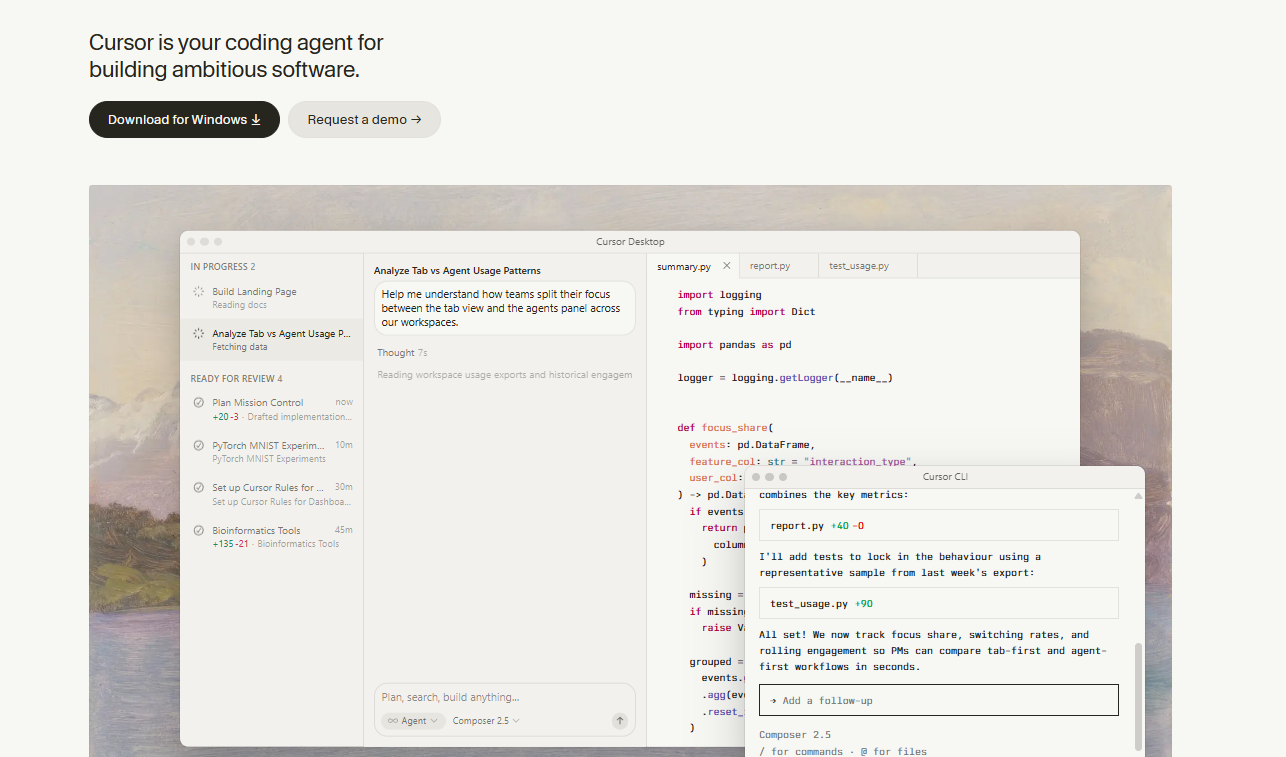
Build, debug, and understand code with AI.
Most AI coding tools are great at generating snippets, but they often struggle when projects become larger and more complex. Cursor AI is a bit different. It tries to understand the entire codebase and assist developers with everything from debugging to refactoring.
That sounds impressive on paper, but the real question is whether these features genuinely improve the development experience. After reviewing its capabilities, Cursor AI appears to offer much more than a standard AI assistant, especially for developers working on large projects.
Features Of Cursor AI
AI Code Generation
This feature is an obvious one. Of course, an AI coding assistant will have an AI code generation feature. But the thing is, it can create code by simple instructions only. Developers can describe what they need, and the tool generates working code in seconds.
Codebase Understanding
Cursor AI has the ability to understand a full project. Just by asking questions about functions, files, or workflows, you will receive clear explanations.
Multi-File Refactoring
Since updating large projects is generally considered difficult. Cursor AI can make changes across multiple files at once, helping developers save time and reduce mistakes.
Smart Debugging
Analyze code, identify possible issues, and suggest solutions.
Git Integration
This tool works with Git, making it easier to manage version control and generate meaningful commit messages.
Use Cases Of Cursor AI
Solo Developers
Build projects and fix issues.
Startup Teams
Speed up development with fewer resources.
Software Teams
Manage and understand large codebases more easily.
New Developers
Learn coding concepts and understand complex code.
Legacy Code Maintainers
Refactor and update older projects efficiently.
Full-Stack Developers
Get assistance across frontend and backend development.
How To Use Cursor AI
Getting started with Cursor AI is surprisingly simple, especially if you have used Visual Studio Code before. Since Cursor is built on VS Code, the interface feels familiar from the moment you open it.
Step 1: Install and Open Cursor AI
Download Cursor AI from its official website and install it on your computer. Once launched, you can create a new project or open an existing codebase just as you would in a traditional code editor.
Step 2: Let Cursor Understand Your Project
After opening a project, Cursor scans your files to understand the structure of the codebase. This allows it to provide more accurate suggestions and answer questions based on the context of your project.
Step 3: Generate Code with Natural Language
One of the easiest ways to use Cursor AI is by describing what you want in plain English.
For example, if you are building a login system, you can type:
// Create a function to validate an email address
Cursor AI can generate the function automatically:
function validateEmail(email) {
return /^[^\s@]+@[^\s@]+\.[^\s@]+$/.test(email);
}
This can save time when working on repetitive coding tasks.
Step 4: Ask Questions About Your Code
Instead of manually searching through files, you can ask Cursor questions directly.
Examples:
"What does this function do?"
"Where is user authentication handled?"
"Explain this code in simple terms."
This feature is especially useful when working with large projects or code written by someone else.
Step 5: Use AI to Fix Bugs
When something is not working, highlight the code and ask Cursor to review it.
For example:
"Find the bug in this function and suggest a fix."
Cursor analyzes the code and often points out logical errors, missing conditions, or syntax issues that may have been overlooked.
Step 6: Refactor Existing Code
Cursor AI can also improve older code without changing its functionality.
You can simply ask:
"Refactor this code to make it cleaner and easier to read."
This is helpful when maintaining legacy projects or preparing code for team collaboration.
Step 7: Generate Documentation and Tests
Once your code is working, Cursor can help create documentation and test cases.
Common prompts include:
"Write a docstring for this function."
"Generate unit tests for this code."
"Add comments explaining the logic."
These tasks are often time-consuming, and Cursor can complete them in seconds.
Tips for Better Results:
- Give clear instructions when writing prompts.
- Review AI-generated code before using it in production.
- Use Cursor as an assistant rather than a replacement for coding knowledge.
- Take advantage of its codebase search and explanation features, as these are some of its strongest capabilities.
What We Like About Cursor AI
Project Awareness
Understands entire codebases, not just single files.
Fast Code Generation
Creates code from simple prompts.
Smart Debugging
Helps find and fix coding issues quickly.
Powerful Refactoring
Improves code across multiple files.
Multi-Language Support
Works with many popular programming languages.
What We Don't Like About Cursor AI
Requires Review
AI-generated code is not always perfect.
Learning Curve
Some advanced features may take time to master.
Cursor AI Pricing Plans
Hobby
- No credit card required
- Limited agent requests
- Limited tab completions
- Best for beginners and casual users
Individual - $20/month
- Everything in the Hobby plan
- Extended agent limits
- Access to advanced AI models
- MCPs, skills, and hooks support
- Cloud agents
- Best for solo developers and freelancers
Teams - $40/user/month
- Everything in the Individual plan
- Centralized team billing
- Shared team context
- Team marketplace for rules and plugins
- Usage analytics
- SAML/OIDC SSO support
- Best for development teams
Enterprise - Custom Pricing
- Everything in the Teams plan
- Advanced security controls
- Audit logs and service accounts
- Repository and model access controls
- AI code tracking API
- Priority support
- Best for large organizations
FAQs About Cursor AI
Is Cursor AI free?
Yes, it offers a free Hobby plan with limited features.
Can Cursor AI fix bugs?
Yes, it can identify and suggest fixes for coding errors.
Does Cursor AI support multiple languages?
Yes, it works with many popular programming languages.
Can beginners use Cursor AI?
Yes, its code explanations make learning easier.
Is Cursor AI built on VS Code?
Yes, Cursor AI is based on Visual Studio Code.
Conclusion
With its features and capabilities, Cursor AI has impressed most of its users who are seeking an AI tool for coding. By comprehending whole codebases, creating code, clarifying intricate coding logic, and helping with debugging, it does far surpass being a mere coding tool. Cursor AI may not only boost productivity but also make the daily coding activities much simpler.