The best AI video editing tools in 2026 are invideo Editor for agentic editing that assembles a base cut from raw footage; Descript for text-based podcast editing; CapCut for free social templates; Runway for generative video; and Opus Clip for automated shorts. The right pick depends on whether you need an editor, a generator, or a repurposer.
Most “AI video editor” roundups compare tools that don’t actually do the same job. Some edit footage you already have. Some generate new footage from a prompt. Some just mine a long recording for short clips. Before ranking anything, it’s worth knowing which of those three jobs you actually need done.
The 10 Best AI Video Editing Tools at a Glance
| # | Tool | Best For | AI Approach | Starting Price |
| 1 | invideo Editor | Agentic editing from raw footage | Agents assemble a base cut, then edit further from plain language | Free; paid from $9/seat/mo |
| 2 | Descript | Text-based podcast editing | Edit video by editing the transcript | Free; paid from ~$16/mo |
| 3 | CapCut | Free short-form social editing | Templates plus assistive AI features | Free; Pro varies |
| 4 | Runway | Generative video and VFX | Text-to-video generation and AI effects | Free trial; from ~$12/mo |
| 5 | Opus Clip | Auto-clipping long video into shorts | Highlight detection and virality scoring | Free; from ~$15/mo |
| 6 | Veed | Quick browser edits and captions | Assistive web editor with AI tools | Free; from ~$9/mo |
| 7 | Kapwing | Team-based social content | Collaborative web editor with AI tools | Free; from ~$16/mo |
| 8 | Filmora | Budget desktop editing with AI assists | Traditional editor plus AI features | Free trial; from ~$49.99/yr |
| 9 | Premiere Pro (AI) | Professional suites adding AI | Assistive AI inside a pro NLE | Free trial; ~$22.99/mo |
| 10 | DaVinci Resolve (AI) | Pro color and finishing with AI assists | Neural Engine features in a pro suite | Free; Studio ~$295 once |
Pricing and free-tier terms shift often across this category — treat this table as a starting point and verify current terms before committing.
One thing worth understanding before comparing specs: these tools fall into three different categories. Editors (invideo Editor, Descript, Premiere, Resolve) improve footage you already shot. Generators (Runway) create footage from text or images. Repurposers (Opus Clip) mine existing long-form video for short clips. Figure out which one you actually need first.
1. Invideo Editor: Best Overall for Agentic AI Editing
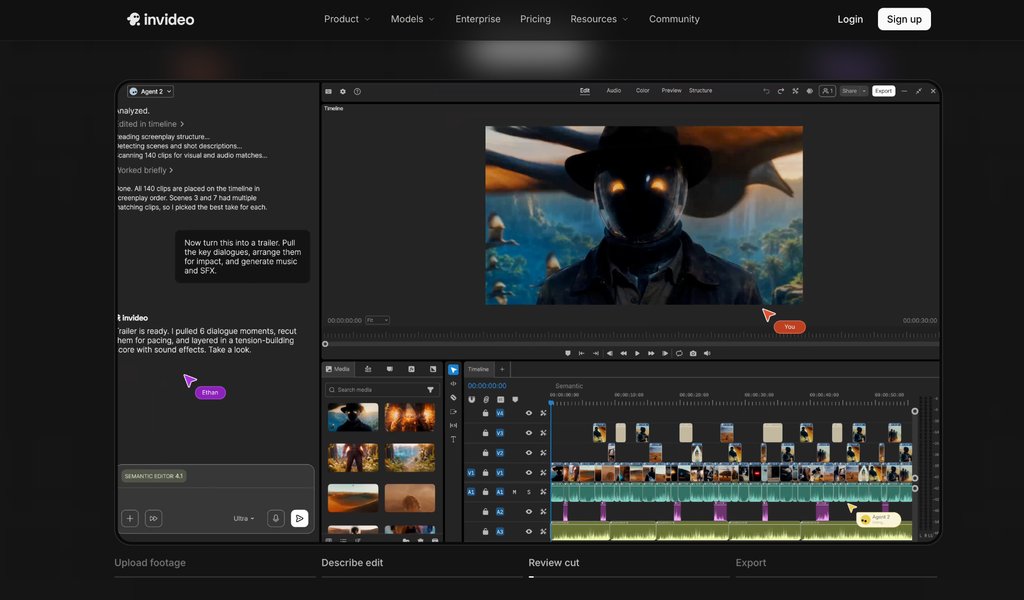
Invideo Editor pairs a real, frame-accurate timeline with AI agents you assign editing work to. Upload raw footage and describe the cut, and agents log takes, remove filler, and assemble a base cut, then handle multicam sync, footage search, pacing, grading, audio mixing, and dubbing, or match a reference edit’s style. Everything lands on a timeline with keyframes and a full color and audio suite, still editable by hand.
200+ generative models sit in the same project, so missing footage or a needed voiceover can be generated without leaving the edit. Finished work exports as an MP4, or as an editable project to Premiere Pro, Final Cut Pro, or DaVinci Resolve, with cuts and layers intact, useful for finishing in a studio’s existing pipeline rather than staying locked to the browser.
- Strengths: genuine agentic assembly from raw footage, not just assistive features; manual timeline stays fully editable after any agent action
- Limitations: the manual editor is accessible on the entry tier, but full agent access is gated to paid plans
- Pricing: Basic $9/seat/mo (limited “Lite only” agent access), Pro $25/seat/mo and Ultra $60/seat/mo (full agent access, Seedance model access), billed annually
2. Descript: Best for Text-Based Podcast Editing
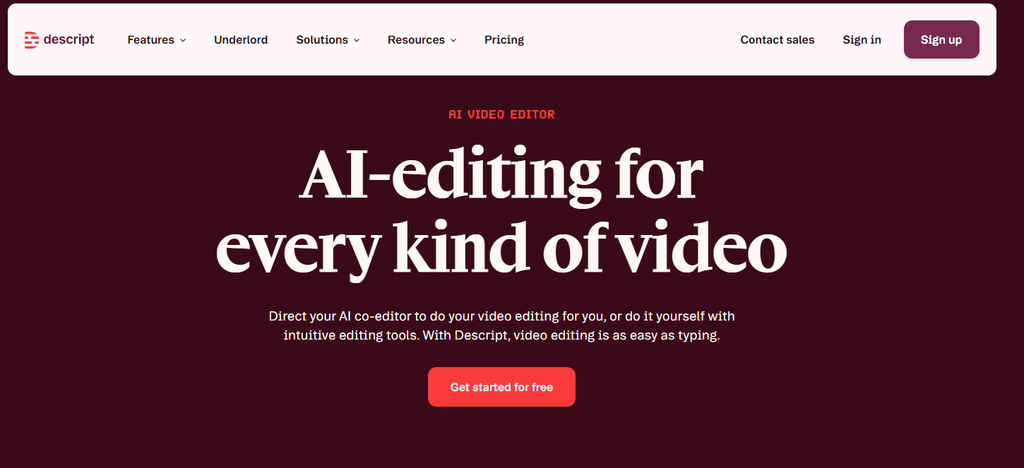
Descript pioneered video editing by editing its transcript: delete a sentence in the text, and the corresponding cut happens in the video, filler words and all. Studio Sound cleans up room noise and uneven levels automatically, and Overdub clones a voice from a short sample so a narration mistake can be fixed by retyping the line rather than booking a new recording session. It’s built primarily around spoken-word content, podcasts, interviews, screen-recorded tutorials, where the transcript is a genuinely useful editing surface rather than an afterthought.
- Strengths: transcript-based editing is fast and intuitive for dialogue-heavy content; Overdub fixes narration without a re-record; strong for solo podcasters and course creators
- Limitations: AI stays assistive rather than agentic; it doesn’t independently assemble a cut from raw, unscripted footage; edits one project at a time
Pricing: Free tier available; Hobbyist ~$16/mo, Creator ~$24/mo, billed annually.
3. CapCut: Best Free Tool for Social Templates
CapCut remains the fastest path from phone footage to a trend-formatted short-form clip. Auto-captions transcribe and sync as you cut, a large effects and transitions library covers most trending formats within days of them appearing, and the template system lets a creator drop their own footage into a proven structure rather than building pacing from scratch. It’s genuinely free at a level most competitors gate behind a paid tier, which is a big part of why it’s become the default entry point for short-form editing on both mobile and desktop.
- Strengths: genuinely free with a large, constantly updated template library; fastest option for quick social-native edits; strong mobile app
- Limitations: AI operates at the feature level rather than through prompt-driven workflows; long-form editing is a noticeably weaker fit than its social-clip use case
Pricing: Free; Pro pricing varies by region and platform.
4. Runway: Best for Generative Video
Runway’s Gen models turn text and images into original footage and apply AI effects to existing video, inpainting to remove or replace an object, Motion Brush for vector-level control over how a specific part of a frame moves, and style transfer to shift a shot’s look entirely. It’s genuinely strong for a hero shot that doesn’t exist yet, a product demo angle nobody filmed, a fantastical environment, or a specific camera move a real shoot couldn’t capture. Most serious productions treat it as one generation source among several rather than the whole toolkit, since it doesn’t manage a project’s footage, structure, or ongoing edit the way a full editor does.
- Strengths: strong generative quality for footage that doesn’t exist yet; precise manual control via Motion Brush for a specific effect
- Limitations: fundamentally a generator, not an editor; most teams pair it with a genuine editing tool rather than using it as a replacement
Pricing: Free trial; paid plans from ~$12/mo.
5. Opus Clip: Best for Auto-Clipping Long Video
Feed Opus Clip a long recording, a podcast, a webinar, a keynote, and it returns multiple captioned vertical clips, each scored for predicted virality so a team can prioritize which one to post first rather than guessing. It identifies emotionally engaging or information-dense moments automatically, reframes the footage to vertical, and adds styled captions in one pass. For a creator or team sitting on hours of unused long-form recordings, it’s a fast way to turn that backlog into a steady stream of short-form posts without manually scrubbing through each recording looking for a good moment.
- Strengths: sharpest single-purpose repurposing tool for mining long video into shorts; virality scoring helps prioritize which clips to post
- Limitations: won’t edit your primary video, so it’s typically paired with a full editor for the main cut
Pricing: Free tier available; paid plans from ~$15/mo.
6. Veed: Best for Quick Browser Edits
Veed built its reputation on fast, approachable browser editing: captions that sync automatically, translation into dozens of languages, built-in screen recording, and a simple drag-and-trim timeline that doesn’t require any prior editing experience. It’s a genuinely good fit for a marketing team that needs a quick explainer or a social clip turned around same-day, or a course creator subtitling a screen recording without learning a full NLE. The tradeoff is depth: its AI features assist a specific task rather than executing a broader edit on their own, and some of the more useful export options are reserved for paid plans.
- Strengths: strong for one-off marketing clips and subtitling; approachable for non-editors; built-in screen recording is a genuine convenience
- Limitations: AI stays assistive rather than agentic; watermark removal and longer exports sit behind paid tiers
Pricing: Free; paid plans from ~$9/mo.
7. Kapwing: Best for Team Collaboration
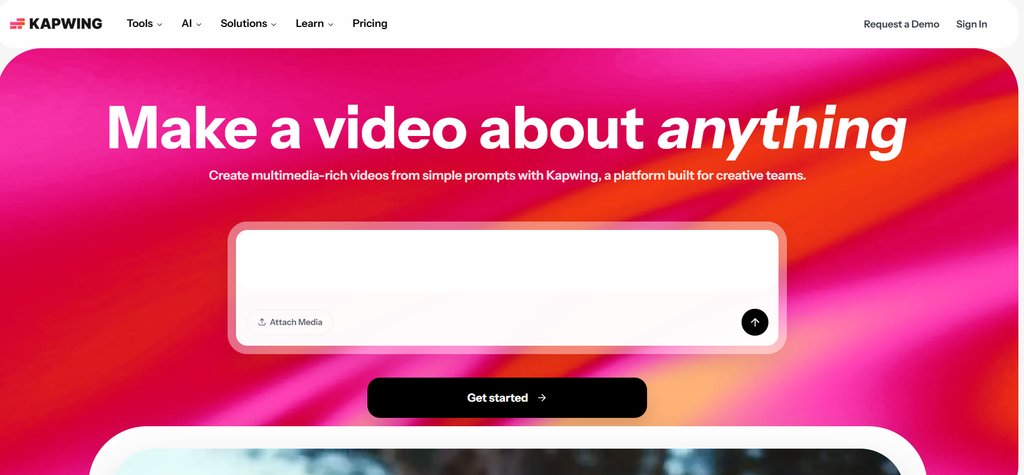
Kapwing is built around shared workspaces from the ground up: comments, brand kits that lock a team’s fonts and colors across every export, and a project structure meant for several people touching the same edit rather than one person working alone. Its AI toolset, smart cut, auto-subtitles, translation, covers the common repetitive tasks a social team runs into daily, and the collaborative layer means a marketer, a designer, and an approver can all work inside the same project without exporting and re-importing files between separate tools. It’s a strong fit specifically for teams, less so for a single power user chasing maximum editing depth.
- Strengths: genuinely strong for teams producing social content together; brand kits keep output consistent across a team; real-time collaboration reduces file back-and-forth
- Limitations: solo power users may eventually want more editing depth than the collaborative feature set offers
Pricing: Free; paid plans from ~$16/mo.
8. Filmora: Best Budget Desktop Editor with AI
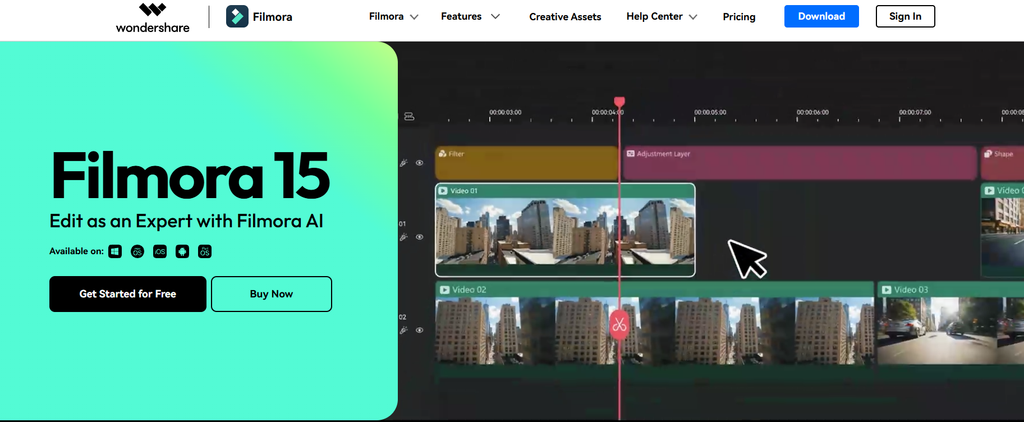
Wondershare Filmora packs credible AI assists, smart cutout for quick background removal, audio denoise, text-based editing, into an approachable desktop editor priced well below the professional suites. It sits deliberately between a simple mobile app and a full professional NLE: enough timeline depth to build a genuinely structured edit, enough guided AI tooling that a hobbyist isn’t stuck doing every correction by hand, without the steep learning curve of Premiere or Resolve. For someone upgrading from a phone-only editing app who isn’t ready to commit to professional software, it’s a comfortable middle step.
- Strengths: solid middle ground for hobbyists who want a traditional timeline with modern AI helpers layered on top; budget-friendly relative to professional suites
- Limitations: a desktop install, not browser-based; AI depth trails dedicated agentic or generative tools
Pricing: Free trial; from ~$49.99/yr.
9. Adobe Premiere Pro: Best Pro Suite Adding AI
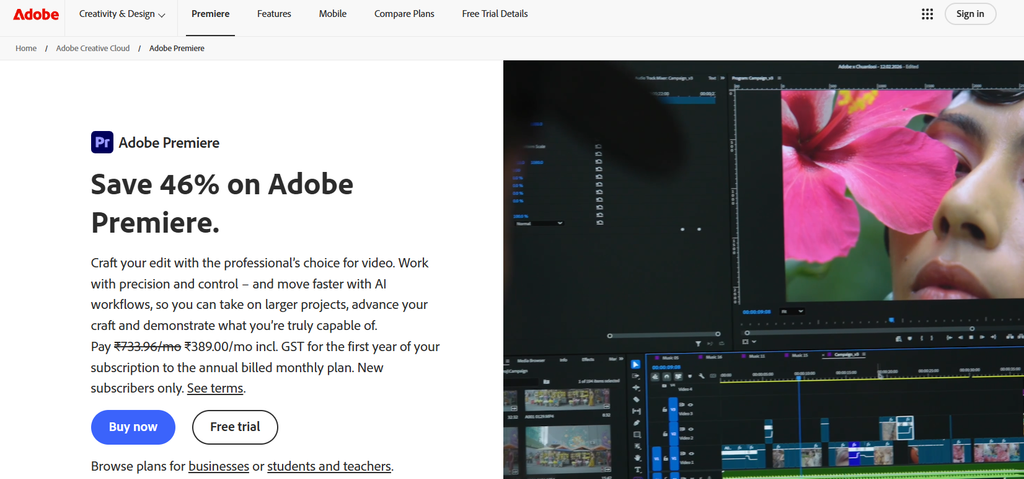
Premiere’s AI additions genuinely speed up professional workflows without changing what the software fundamentally is: text-based editing lets an editor cut by deleting words in a transcript, auto-transcription saves a manual captioning pass, Generative Extend fills in a few extra frames when a shot runs short, and Enhance Speech cleans up rough production audio automatically. These are meaningful time savings layered onto an already deep, industry-standard toolset, not a replacement for the editor’s own judgment or the software’s genuine learning curve. Studios and professional editors already invested in the Adobe ecosystem get the most value here, since the AI assists slot into a workflow they’ve already built.
- Strengths: industry-standard professional depth; AI assists genuinely reduce repetitive manual work for an experienced operator; deep ecosystem integration with other Adobe tools
- Limitations: the AI assists an expert operator rather than replacing the learning curve required to use the software well
Pricing: Free trial; ~$22.99/mo subscription.
10. DaVinci Resolve: Best Free Pro Suite with AI
Resolve’s Neural Engine brings voice isolation, magic mask for tracking and isolating a subject without manual rotoscoping, automatic scene detection across a long timeline, and AI-assisted relighting to what’s widely regarded as the most complete free editing suite ever shipped. Its color-grading tools in particular remain a genuine industry standard, used on professional film and television work well beyond what most competitors on this list attempt. The free version alone out-features most paid editors; the catch is that Resolve was built for professional colorists and editors first, so the interface assumes a level of technical fluency a casual creator won’t have on day one.
- Strengths: the deepest professional feature set available for free; genuinely industry-standard color and finishing tools
- Limitations: the steepest learning curve on this list; the deepest AI features live behind the paid Studio version
Pricing: Free; Studio version ~$295 one-time.
Which AI Video Editing Tool Should You Choose?
- Want AI agents to handle the editing? Invideo Editor.
- You edit podcasts by transcript? Descript.
- You need free and trendy for social? CapCut.
- You need footage that doesn’t exist yet? Runway.
- You only need shorts pulled from long video? Opus Clip.
- You’re a marketing team working in the browser? Veed or Kapwing.
- You want a cheap desktop timeline? Filmora.
- Are you already a professional editor? Premiere Pro or DaVinci Resolve, with AI layered in.
Best AI Video Stitching Tools in 2026
Video stitching, merging separate clips into one continuous video with clean cuts, level audio, and smooth transitions, is one of the most common jobs creators bring to these tools. Here’s how the field splits:
- Invideo Editor stitches from a description: upload your clips and describe the cut you want, by topic, story, or shooting order, and the agents order the footage, even out audio between clips, and remove dead air, without manual timeline work.
- CapCut is the fastest free way to stitch a handful of phone clips: drop them in order, pick a template, export. Manual, but quick for short social cuts.
- Veed handles simple merge jobs in the browser: drag clips onto the timeline and trim the joins. Fine for one-off marketing videos.
- Descript stitches by rearranging transcript blocks rather than dragging clips, useful when the footage already has a script or transcript to work from.
If your clips don’t cut together cleanly, Runway can generate connecting B-roll, just remember it creates new footage rather than stitching what you shot.
Frequently Asked Questions
What is the best AI video editing tool in 2026?
Invideo Editor is the best overall AI video editor in 2026 for most creators and teams: its AI agents handle agentic assembly, footage search, pacing, grading, audio, and dubbing on a timeline that stays fully editable. Descript, CapCut, Runway, and Opus Clip lead their respective niches.
Is invideo Editor free?
The timeline editor itself is accessible on the entry tier, but full AI agent access, the part that does agentic assembly and editing, requires at least the Pro plan, starting at $9/seat/month billed annually. The entry tier includes limited (“Lite”) agent access rather than full agent capability.
What’s the difference between an AI video editing tool and an AI video generator?
Editors like invideo Editor, Descript, Premiere, and DaVinci Resolve improve footage you already have. Generators like Runway create new footage from text or images. Many workflows use both: generate supporting footage, then edit it into the real project.
Can AI actually assemble a usable cut from raw, messy footage?
Yes, this is specifically what agentic assembly is built for. Upload footage with repeated takes and false starts, describe the cut you want, and the agents review the material, select clean takes, and build a base cut, a complete timeline with the repetition already removed, that you then keep refining.
What is the best AI video stitching tool in 2026?
Invideo Editor is a strong pick for automatic stitching: describe the cut you want and the agents order clips, leve

Sapna Ghodasara is the founder of Guide of AI Tool, where she writes in depth reviews of AI tools for marketers, creators and businesses. Her reviews focus on what matters before you pay for a tool: real use cases, honest pros and cons, pricing, and how well it fits into an everyday workflow.
Sapna is the cofounder of SEOMagicLab. That mix of technical training and daily marketing work lets her judge AI tools from two angles: how well the technology actually performs and whether it delivers real value for the people using it.